Turn rough cutouts into polished images with a free browser-based background editor: Refine edges, replace backgrounds and adjust colors
Local processing, a free workflow, and the tools to finish the job.
remove.bg's standalone website is scheduled to close on December 1, 2026. Many users are used to this way of working, so Bg Remover preserves the same core editing workflow for free: remove backgrounds, refine edges with brushes, replace backgrounds with colors or images, and download at full resolution with no credits and no account.
Background removal and image editing run locally in your browser. Your image does not need to be uploaded to a remote server for these operations.
Already removed a background on Bg Remover? Continue to the editor without uploading the same image again. You can also upload an image directly in the editor to start a new project.
Automatic background removal is a starting point. Use erase and restore brushes to adjust the visible subject and refine areas that need a manual touch.
Choose a transparent background, a solid color, or another image. Add a shadow or blur, adjust colors, and rotate or flip the image to suit your project.
Add multiple images to the editor and switch between them. Each image keeps its own editing settings and undo history during the session.
Download your edited image as PNG, JPG, or WebP, depending on whether you need transparency or a standard image for everyday use.
Refine edges, replace the background, add effects, and adjust colors in one place.
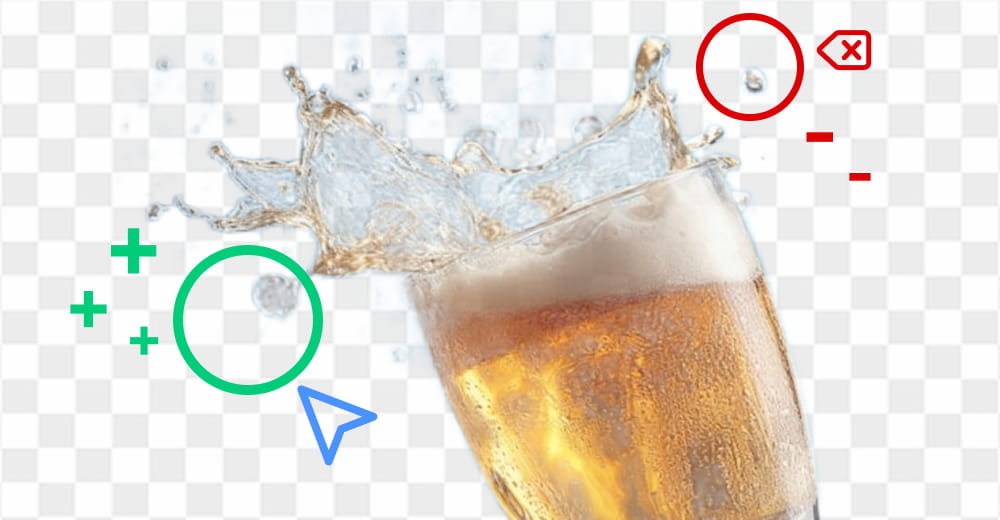
Clean up the edges of a background-removed image with erase and restore brushes. Adjust brush size, hardness, and opacity to remove unwanted areas, erase background remnants, or bring back parts of the subject.

Place your cutout on a transparent, solid-color, or image background. Change the background color of your photo in one click, pick a custom color, or add a background to your image by uploading a photo of your own.
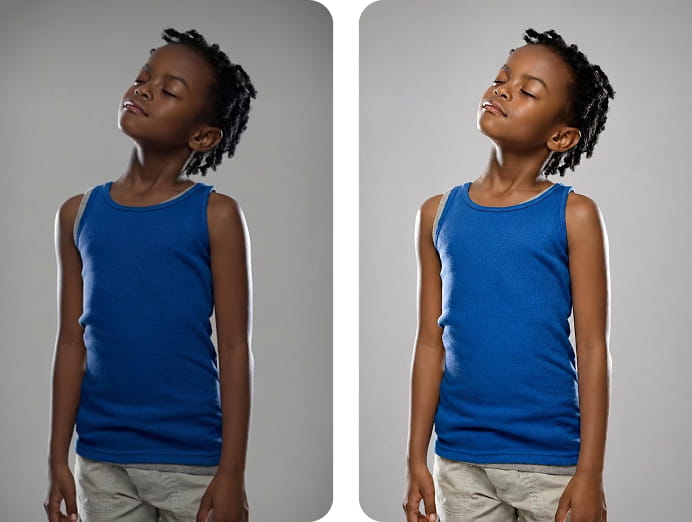
Fine-tune brightness, contrast, saturation, temperature, and tint. Rotate or flip your image to get the composition right before you download.
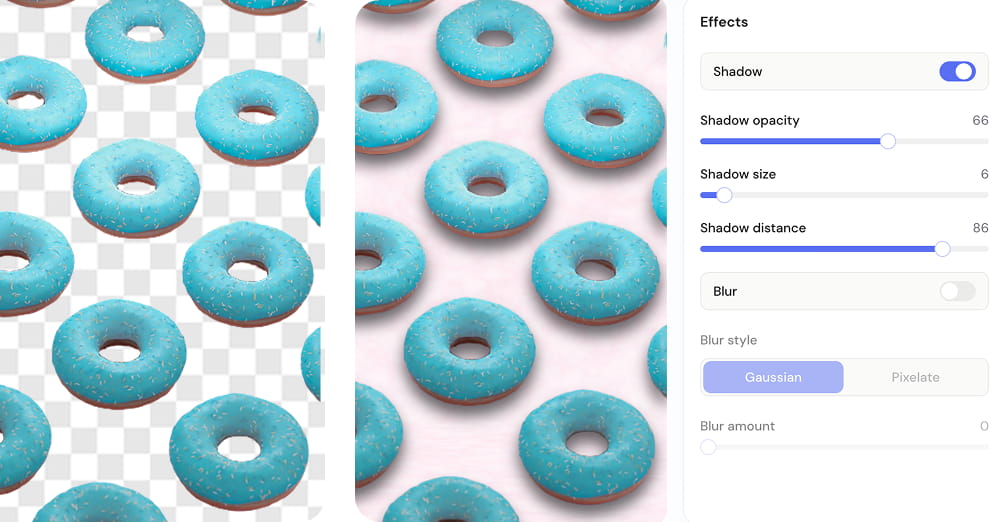
Add a shadow to give your subject more visual depth, or blur the background to make the subject stand out. Choose Gaussian blur for a soft look or Pixelate for a stylized effect.
Five steps from upload to download, with no account and no server upload.
Upload, paste, or drop an image into the editor to get started. You can also remove a background on our homepage and select Edit to continue without uploading again.
Use the erase and restore brushes to remove unwanted areas or bring back parts of the subject. Adjust the brush settings to fine-tune the result.
Keep the background transparent, select a solid color, or upload another image as the new background.
Add a shadow or blur, fine-tune image colors, and rotate or flip the image as needed.
Review your edits, compare the result with the original where needed, and export the finished image as PNG, JPG, or WebP.
Prepare images for the places you publish them, from product listings to profile pictures.
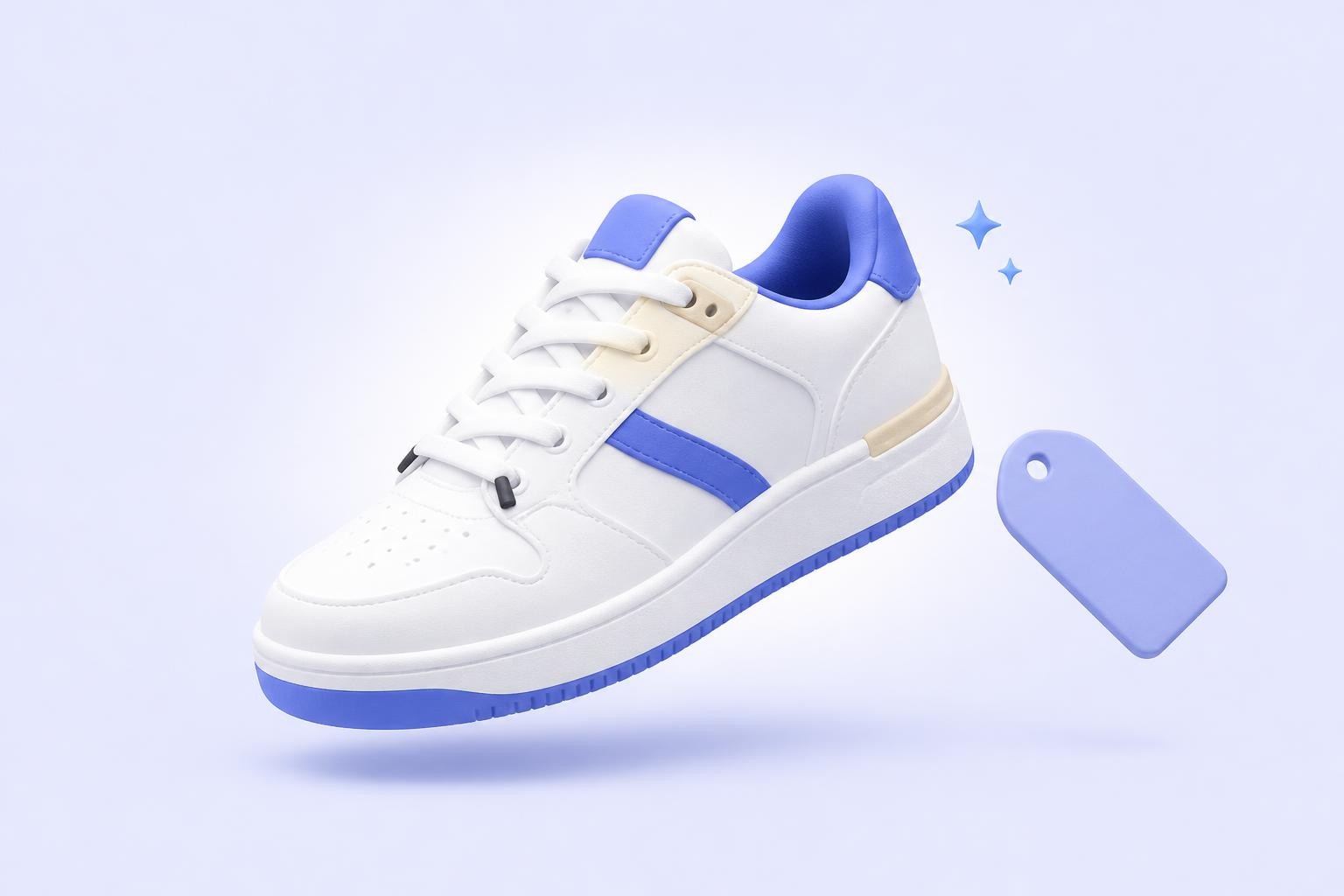
Prepare product images with transparent or solid-color backgrounds. Refine the edges, adjust the image, and add a shadow to create a cleaner presentation for product listings, catalogs, and promotional materials.
Refine portrait cutouts and replace distracting backgrounds with a solid color or another image. Make simple color and orientation adjustments before using the result as a profile picture or headshot.

Prepare images for social posts, thumbnails, and promotional graphics by placing cutouts on custom backgrounds and applying simple visual effects.

Keep a subject on a transparent background or combine it with another image to create assets for slides, posters, and personal design projects.

Cut out the subject of a photo and place it on a bold, high-contrast background to build YouTube thumbnails that stand out in the feed. Refine hair and edges, add a shadow, and export a crisp PNG at full resolution.
Photograph items at home and replace cluttered backgrounds with a clean, neutral one before posting to eBay, Facebook Marketplace, or Craigslist. Clearer photos help second-hand items sell faster.
Get the most out of the editor and know exactly what it supports.
Upload an image, refine your cutout, choose a new background, and download the finished result in the format you need. Everything runs locally in your browser, free of charge.
Answers to the questions people ask most about the editor.
Is the Bg Remover background editor free?
Yes. You can remove backgrounds, refine cutouts, replace backgrounds, apply effects, adjust colors, and download your images at full resolution for free. No account and no subscription are required.
Is this a remove.bg alternative?
Yes. Bg Remover is a free remove.bg alternative that covers the workflow its users rely on. With remove.bg's standalone website closing on December 1, 2026, you can remove the background automatically, refine edges with erase and restore brushes, replace the background with a color or image, add shadows and blur, adjust colors, and export at full resolution without credits or an account.
Are my images uploaded to a server?
No. Background removal and editing are processed locally in your browser. Your image does not need to be sent to a remote server, and nothing is stored in the cloud.
Can I use the edited images commercially?
Yes. Images you edit and download with Bg Remover can be used for both personal and commercial purposes, including product listings, marketing materials, and client work.
How do I change the background of a photo to a solid color?
Open the editor, select the background tool, and choose the solid color option. Pick a color from the palette or use the custom color picker to enter your own. You can also keep the background transparent or upload another image as the background.
How do I fix rough edges or missing details after background removal?
Switch to the Refine tab and use the erase and restore brushes. Zoom in with the magnifier button, lower the brush hardness for soft areas like hair, and paint over the edges. Hold the Compare button at any time to check your edits against the original cutout.
Can I undo my edits?
Yes. Each image keeps its own undo history of up to 10 steps. You can also use Ctrl+Z (or Cmd+Z on Mac) to undo and Ctrl+Shift+Z to redo.
Will my images still be there if I close the tab?
Your images and edits are saved locally in your browser, so you can close the tab and continue later. Sessions are kept for 24 hours and are then removed automatically.
Can I edit multiple images at once?
You can add multiple images to one editing session and switch between them, with each image keeping its own edits and history. To keep processing fast and stable, the editor works on one image at a time: dropping several files processes the first one, and additional uploads are queued.
Does the editor work on mobile?
Yes. The editor works on phones and tablets with a touch-friendly layout. You can refine cutouts with your finger, and zoom the canvas by pinching with two fingers.
Which browsers are supported?
For the best experience, we recommend Chrome or Edge. They support WebGPU, which powers fast, high-quality background removal, GPU-accelerated color filters, and the Gaussian blur effect. Safari and Firefox are also supported: editing works fully, but background removal runs in a slower compatibility mode, and Gaussian blur needs WebGL, so switch to the Pixelate style if it is unavailable.